

-
Listen anytime, anywhere
- Choose your device to learn how


Download and open the free Audible app

Sign in to view your audiobooks and original podcasts in My Library
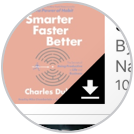
Tap the cover to start downloading your title. Wait for Ready to Listen to appear, then tap the cover again to start listening.
Download and open the free Audible app

Sign in to view your audiobooks and original podcasts in My Library
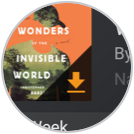
Tap the cover to start downloading your title. When it's ready, you will see a play icon. Tap the cover again to start listening.
Download and open the free Audible app
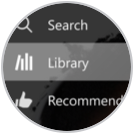
Sign in to view your audiobooks and original podcasts in your Library
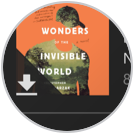
Tap the cover of your title to download. When available, tap the play button to start listening.


From the Home screen, tap the Audiobooks tab or the Audible app

Find your audiobook or original podcast in your Library and tap the cover to download

Once the cover is no longer greyed out, tap again to start listening

Sign into your Amazon account on your Alexa-enabled device

Say Alexa, read [title of audiobook] and your Alexa-enabled device will begin reading your audiobook

Use voice commands like pause, resume, go back or go forward to control your listening experience



On your computer, select Library from the top navigation.

Find your audiobook or original podcast and select the play button.

The Cloud Player will launch and you can begin listening.

Download your audiobook from your Library at audible.co.uk

Launch Apple Books and choose Audiobooks.

Select the cover of the audiobook to start listening

Download and open the free Audible app for Windows 10

Sign in and you will be brought to your Library where you can access your audiobooks and original podcasts

Select the download icon on the cover to download and start listening